





WordPress SEO Audit Checklist to Fix Ranking Issues
Your WordPress site gets thousands of monthly visitors, yet your rankings haven’t improved in six months. You’ve published quality content, built some links, and optimized for keywords—but something’s holding you back. The problem isn’t always what you’re doing; it’s often what you’re not catching.
A WordPress SEO audit systematically identifies hidden technical issues, configuration problems, and optimization gaps that search engines—and competitors—are exploiting. According to HubSpot’s 2024 SEO report, 72% of marketers who prioritize SEO improvements report success, yet most never conduct structured audits to identify what’s actually broken.
This comprehensive guide walks you through a professional-grade WordPress SEO audit framework. Whether your site has been underperforming for months or you’re launching new content, this 15-point checklist reveals exactly where your ranking leaks are and how to seal them.
What Is a WordPress SEO Audit?
A WordPress SEO audit is a systematic examination of your website’s technical health, on-page optimization, and search engine configuration. It answers critical questions:
- Are search engines actually crawling and indexing all your content?
- Is your site structure confusing both users and algorithms?
- Are you losing link equity through redirect chains or broken internal links?
- Is your site speed fast enough for Google’s Core Web Vitals standards?
- Are you implementing proper schema markup for rich snippets?
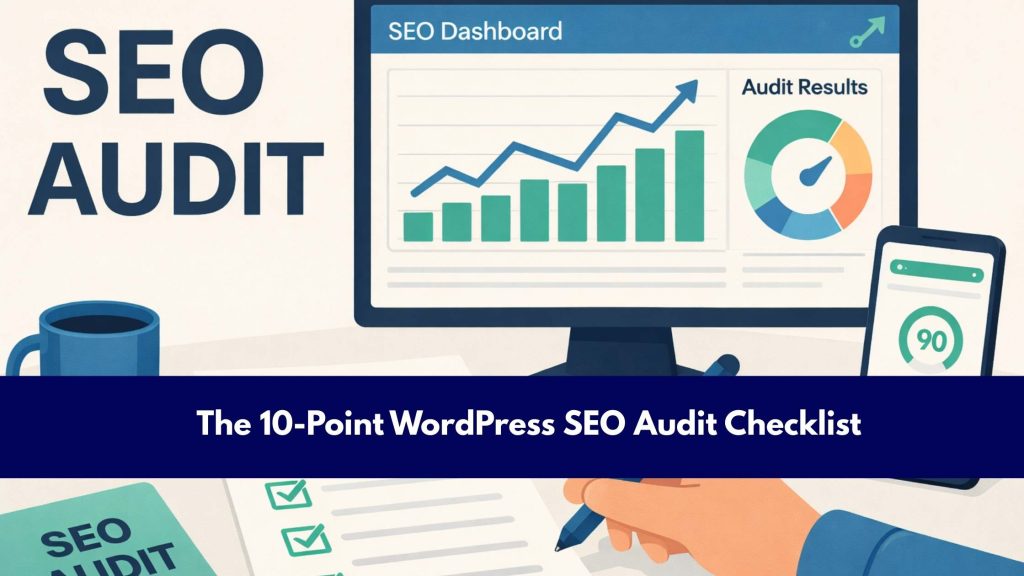
The 10-Point WordPress SEO Audit Checklist
Point 1: Verify Site Indexation Status
Before optimizing anything, confirm Google is actually indexing your site. Log in to Google Search Console and navigate to Settings > Coverage. This report shows:
- Indexed pages: Content Google has successfully indexed
- Excluded pages: Content Google discovered but chose not to index
- Errors: Pages with crawl issues preventing indexation
Google recommends monitoring the Coverage report monthly. If you see significant “Excluded” or “Error” sections, you’ve found your first ranking leak.
Common culprits: Password-protected pages in your index, duplicate content issues, redirect chains, or robots.txt blocking important pages.
Action: Export the full Coverage report. Investigate why excluded pages aren’t indexed. For errors, use the “Learn more” link to understand specific issues.
Point 2: Check Site Speed and Core Web Vitals
72% of website owners prioritize page speed improvement, yet many don’t measure it properly. WordPress sites are particularly vulnerable to speed issues due to heavy plugin loads and unoptimized images.
Visit Google’s PageSpeed Insights and test your homepage, a blog post, and a product/service page. Record:
- LCP (Largest Contentful Paint): Should be under 2.5 seconds
- FID (First Input Delay): Should be under 100 milliseconds (now tracked as INP—Interaction to Next Paint)
- CLS (Cumulative Layout Shift): Should be under 0.1
Why it matters: Core Web Vitals are confirmed ranking factors. A site with poor scores will rank below competitors with similar content quality but better performance.
Action: If scores are below target, identify the top issues in PageSpeed Insights. Usually, it’s unoptimized images, render-blocking resources, or server response time.
Point 3: Audit Your WordPress Permalinks Structure
Many WordPress site owners leave the default “/” or “?p=123” permalink structure, which creates SEO-unfriendly URLs and a poor user experience. URLs containing relevant keywords perform better in search results, and readable URLs increase click-through rates from search results.
How to audit:
Visit Settings > Permalinks in your WordPress dashboard. Check your current structure. Ideally, you should use:
- Post name: Example.com/blog-post-title/ (best for blogs)
- Custom structure: Example.com/category/post-name/ (for organized content)
Never change after launch: If you’re already ranking, changing this structure requires 301 redirects for every URL—a massive undertaking. Only adjust if absolutely necessary.
Action: Verify your structure is SEO-friendly and consistent. If you haven’t set it yet, use the “Post name” option.
Point 4: Conduct a Duplicate Content Audit
WordPress often creates duplicate content through:
- WWW vs. non-www versions: Example.com and www.example.com rank separately
- HTTP vs. HTTPS: Both versions are indexing without proper canonicalization
- Pagination issues: Page 1, 2, 3 of archives creating thin content
- Archive pages: Category and tag pages sometimes duplicate blog post content
Duplicate content dilutes link equity and confuses Google about which version to rank. This directly impacts rankings.
How to audit:
Use Screaming Frog SEO Spider (free version analyzes up to 500 URLs). Look for:
- Duplicate title tags
- Duplicate meta descriptions
- Duplicate page content with different URLs
Action: Set your preferred domain (www or non-www) in Google Search Console. Implement a 301 redirect for the opposite version. Use rel=”canonical” on paginated content pointing to the first page.
Point 5: Review Your WordPress Robots.txt and Sitemap
Your robots.txt file tells search engines which pages to crawl. An improperly configured robots.txt can accidentally block important content from Google.
Check your robots.txt:
Visit yoursite.com/robots.txt. Look for Disallow commands that might be blocking:
- Critical content directories
- CSS or JavaScript files (these should NOT be disallowed)
- Image folders or media library
Verify your XML sitemap:
WordPress automatically generates sitemaps at yoursite.com/sitemap.xml (if using modern SEO plugins like Yoast or Rank Math). Confirm:
- The sitemap includes all important content
- The sitemap is submitted to Google Search Console
- The sitemap updates automatically when you publish new content
According to Google’s guidelines, sitemaps help search engines discover and crawl your content more efficiently.
Action: Audit robots.txt for unintended blocks. Submit your sitemap to Google Search Console if it has not already done. Set up automatic sitemap updates in your SEO plugin.
Point 6: WordPress SEO Audit of On-Page SEO Elements
WordPress sites often suffer from incomplete on-page optimization. Use this framework:
For each page/post, verify:
- Title tag (50-60 characters): Includes primary keyword, is unique, and compels click-through
- Meta description (150-160 characters): Includes keyword naturally, summarizes content, and encourages clicks
- H1 tag: Present exactly once, includes primary keyword, accurately summarizes content
- H2/H3 tags: Create logical content hierarchy, include supporting keywords
- Image alt text: Describes images, includes keywords naturally, aids accessibility
- Internal linking: Links to 3-5 relevant internal pages with descriptive anchor text
Studies show that well-optimized title tags and meta descriptions increase click-through rates by 20-30%, which improves rankings through increased organic traffic signals.
Tools to streamline this audit:
- Yoast SEO or Rank Math plugins provide on-page optimization recommendations
- Screaming Frog crawls your site and reports missing/duplicate meta elements
- SE Ranking provides a complete on-page audit dashboard
Action: Prioritize fixing title tags and meta descriptions for your top 50 pages (by traffic). These changes typically show ranking improvements within 4-6 weeks.
Point 7: Technical SEO: SSL Certificate and HTTPS Implementation
HTTPS is a confirmed ranking factor. Google Chrome marks non-HTTPS sites as “Not Secure,” which directly impacts user trust and click-through rates.
How to verify:
- Visit your homepage. Check for a green padlock icon in the browser address bar.
- Search “yoursite.com” in Google. Ensure the URL in results begins with https://, not http://.
If you’re not using HTTPS:
Most WordPress hosts (Bluehost, SiteGround, WP Engine) offer free SSL certificates through Let’s Encrypt. Install it immediately.
If you recently switched to HTTPS:
Ensure you’ve set your preferred domain in Google Search Console as the HTTPS version. Add all HTTPS property variations (www and non-www).
Action: Verify HTTPS is active. If migrating to HTTPS, set up proper 301 redirects from HTTP to HTTPS versions to preserve link equity.
Point 8: Audit WordPress Plugin SEO Conflicts
Too many SEO plugins create conflicts. Common issues:
- Multiple SEO plugins (e.g., both Yoast and Rank Math) are generating conflicting schema markup
- Caching plugins are caching 404 errors or redirecting pages incorrectly
- Image optimization plugins strip important image metadata or alt text
How to audit:
Deactivate all plugins except essential ones (hosting provider plugins, security plugins, and caching). Monitor site speed and SEO signals. Gradually reactivate plugins, testing impact.
Recommended single SEO plugin:
- Rank Math: Best overall (handles schema, redirects, SEO analysis)
- Yoast SEO: Beginner-friendly (excellent for keyword optimization)
- All-in-One SEO: Good budget option
Action: Choose one SEO plugin and deactivate competing tools. This simplifies configuration and eliminates conflicts.
Point 9: Check WordPress Theme SEO Compatibility
Your theme affects SEO more than most people realize. Poor theme design increases bounce rate and reduces time-on-page—signals Google interprets as low quality.
Verify your theme:
- Loads in under 3 seconds (test at PageSpeed Insights)
- Is mobile-responsive (test on actual phones)
- Has clean, semantic HTML structure
- Includes proper heading hierarchy
- Doesn’t rely heavily on JavaScript rendering (which impacts crawlability)
Theme red flags:
- Custom designs built on older frameworks (pre-2020)
- Themes requiring excessive customization plugins
- Themes with bloated feature sets you’re not using
Recommended WordPress themes for SEO:
- Astra: Fast, lightweight, excellent Core Web Vitals
- GeneratePress: Highly customizable, outstanding performance
- Neve: Modern, built for speed and SEO
- Schema.org-compliant themes: Automatically implement rich snippets
Action: Test your theme’s performance. If it fails Core Web Vitals, consider upgrading to a modern, SEO-focused theme.
Point 10: Audit Internal Linking Strategy
Internal links serve multiple purposes: distributing page authority, establishing content hierarchy, and guiding search engines through your site structure.
Conduct an internal linking audit:
- Identify your most important pages (highest traffic, highest authority)
- Use Screaming Frog to map how many internal links point to each page
- Check that important pages receive at least 3-5 internal links from relevant content
- Look for “orphan” pages (published content with zero internal links)
Best practices:
- Link from relevant content: Link to your service page from relevant blog posts.
- Use descriptive anchor text: Avoid “click here”; use keyword-rich anchors like “WordPress SEO audit services.”
- Create content hubs: Build pillar content supported by multiple related articles linking back.
- Maintain consistent internal linking: If one page links to a resource, ensure all similar pages do too.
Research shows that logical internal linking increases average session duration by 15-20%, which positively impacts rankings.
Action: Identify and link 10-15 orphan pages. Add 2-3 strategic internal links to each of your top 20 pages.
WordPress SEO Audit Tools Comparison
| Tool | Best For | Cost | Learning Curve |
| Rank Math | All-in-one WordPress SEO | Free to $199/year | Low |
| Yoast SEO | On-page optimization | Free to $99/year | Low |
| Screaming Frog | Technical site audits | Free to $199/year | Medium |
| SE Ranking | Comprehensive audits | $45/month+ | Medium |
| Semrush | Competitive analysis + audit | $99/month+ | Medium |
| Google Search Console | Free Google data | Free | Low |
How Directory One Approaches WordPress SEO Audit
Professional WordPress SEO audit agencies follow structured methodologies similar to this checklist, but with additional competitive analysis and strategic planning.
Directory One‘s WordPress SEO audit process includes:
- Comprehensive site crawl identifying 100+ potential optimization opportunities
- Competitive benchmarking against top-ranking competitors
- Phased implementation roadmap prioritizing high-impact fixes
- Ongoing monitoring with monthly reporting on ranking improvements
- Content strategy integration, aligning technical fixes with content planning
For businesses serious about ranking improvements, professional WordPress SEO consulting often delivers faster results and higher ROI than DIY approaches, particularly for competitive industries where ranking requires integrated technical, on-page, and content strategies.
Conclusion
A WordPress seo audit is not a “set it and forget it” task. It is a strategic necessity to ensure your site remains competitive in an increasingly crowded digital landscape. By systematically fixing these 15 points, you move from “hoping to rank” to “deserving to rank.”
At Directory One, we specialize in identifying the subtle technical flaws that prevent businesses from reaching Page 1. Our WordPress seo optimization service is designed to provide more than just a checklist; we provide a roadmap to revenue.
Ready to plug your ranking leaks? For a professional WordPress seo consulting session or to learn more about our affordable WordPress seo agency packages, contact the experts at Directory One today.
Call us at: 713.269.3094.
About The Author
